
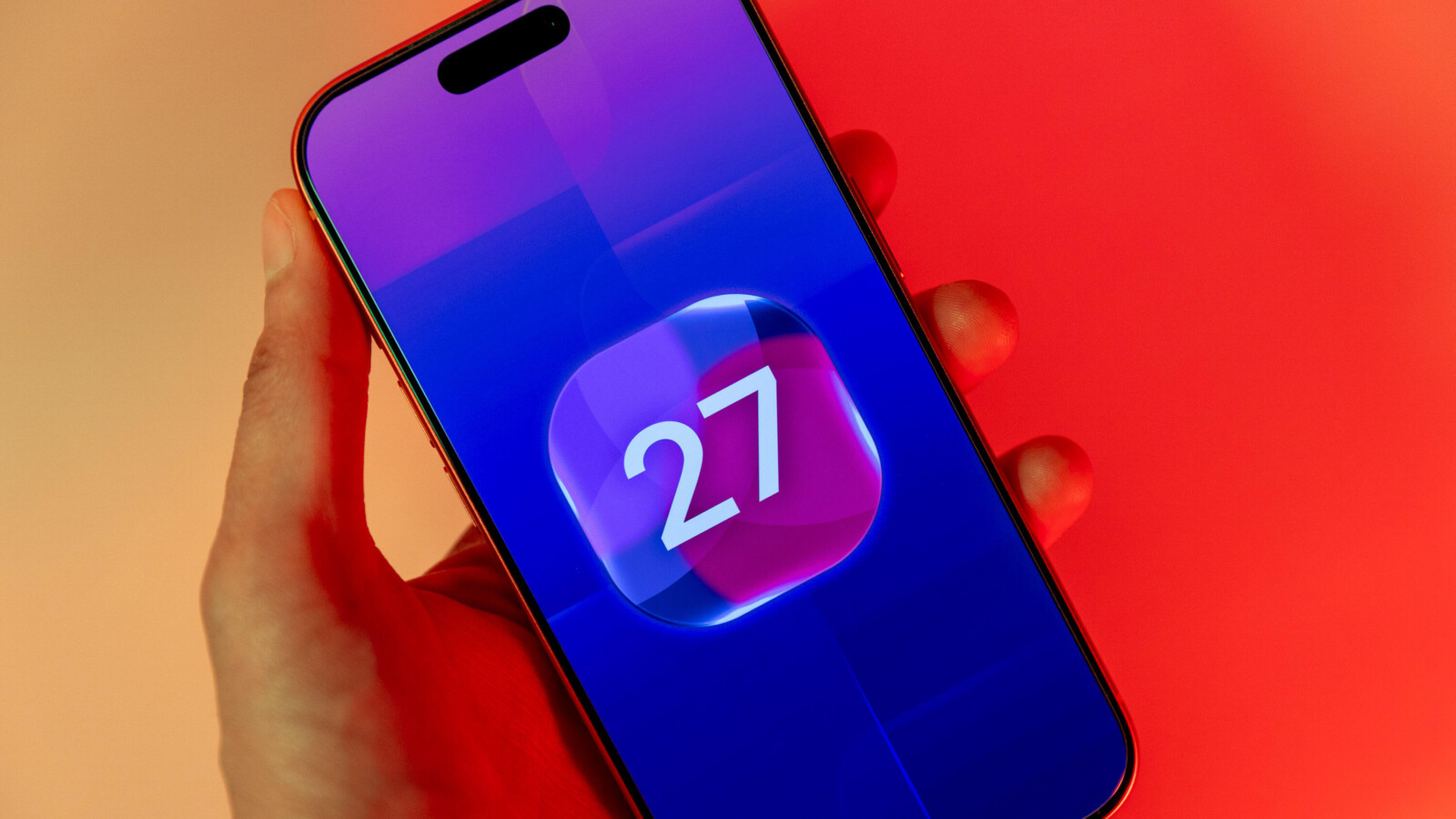
iOS 27 introduces a rebuilt Search system on your iPhone, and after upgrading you may notice your device carrying out some extra background work. The update needs time to become familiar with everything stored on your handset, which is why a status message appears shortly after installation.
Announced at Apple’s Worldwide Developers Conference in June, the redesigned Search interface is intended to make finding items across your device faster, more reliable and more accurate. To achieve this, iOS 27 has to reindex items across your iPhone. Once the update is applied, you will see a banner in the Settings app that reads “Optimising Search and Siri”. This is a normal part of the process and can take a while to complete, but your iPhone remains usable throughout.
You can install the update by going to Settings, then General, then Software Update, then Update Now, and following the on-screen prompts.
What indexing means for your iPhone
Data indexing is the process of scanning and organising metadata from your files so they can be searched easily. The comparison often used is that of the index in a book: it does not hold the content itself, but tells you where to find it and what is inside.
Apple’s guidance on Spotlight indexing explains that Spotlight indexes your iPhone when you first set up the device, as data changes, and after each software update. Your device has therefore reindexed before, most likely without you noticing. Importantly, the index stays on your device and is not shared with Apple or your other devices.
How long optimisation takes
According to Apple, indexing can take anywhere from a couple of hours to a few days. The more content stored on your phone, the longer it will take. The process is more time-consuming with this release because Apple has rebuilt the Search interface rather than simply adding a handful of new items to the existing index.
Because a new search system is being implemented, the software cannot only crawl through recently added content; it must work back through all the data on your phone. The situation is comparable to cataloguing a few new purchases versus creating an inventory of everything in your home.
To speed things up, Apple recommends plugging your device into a power source, connecting it to Wi-Fi, and leaving it unused while the work is under way.
You can still use your iPhone during optimisation. Indexing does not stop the device from working, although it completes more quickly if you set the handset aside. If you do use the phone while the process is running, your Spotlight search results may be incomplete because indexing has not yet finished. Otherwise, your device should operate as usual, and the index remains stored locally on your iPhone.