
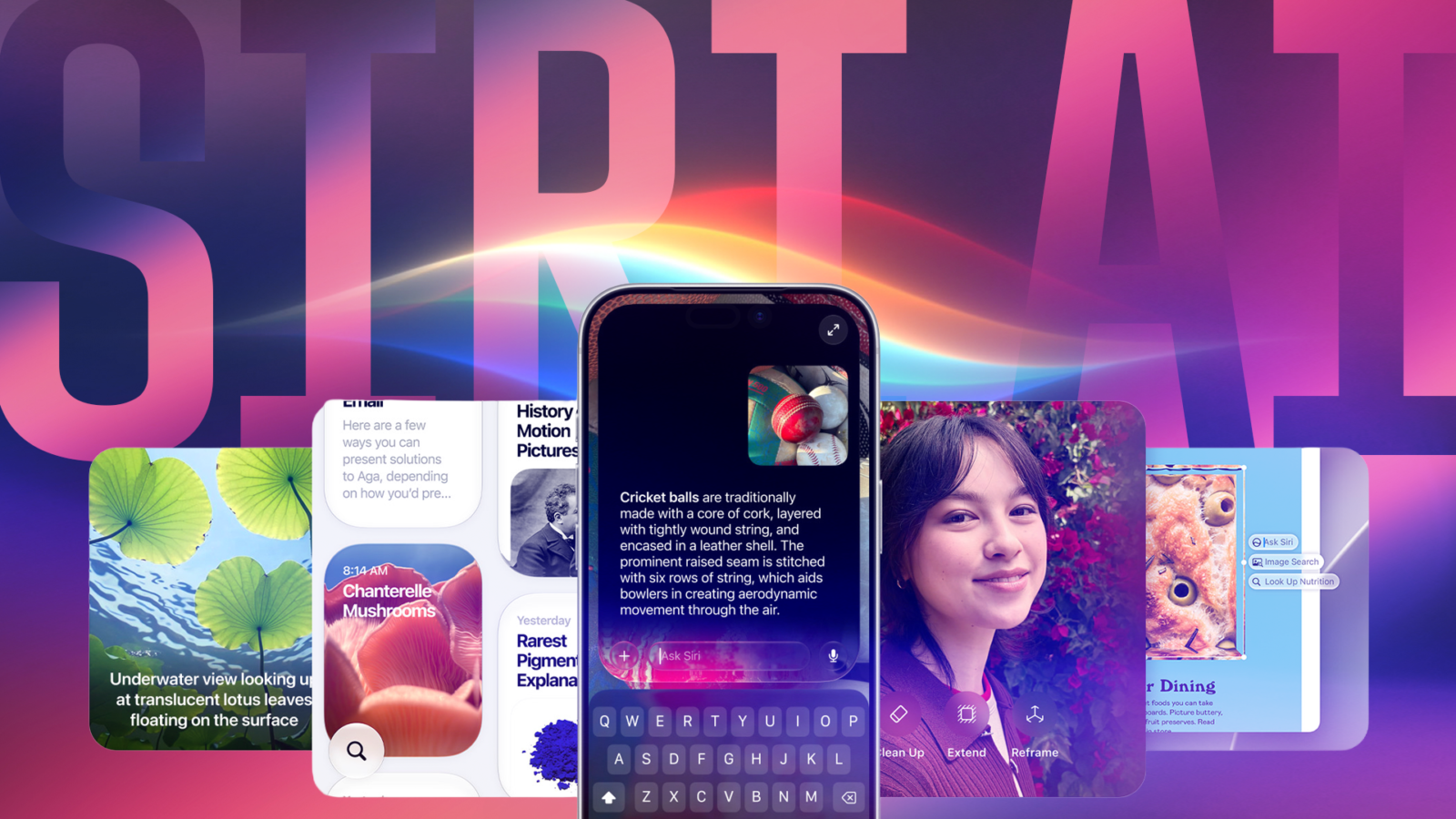
Apple Intelligence can consume a notable amount of on-device storage, and disabling it may help you reclaim that space on your iPhone or Mac. Apple released iOS 27 and macOS 27 in September, introducing a revamped Siri powered by Apple Intelligence across compatible devices. While the updated assistant handles most tasks more capably, it still occupies significant storage. On one iPhone, it takes up roughly 6.4GB of data, while on a MacBook the figure reaches around 17.9GB.
If you are not making use of the new AI features, you can switch them off and, depending on your operating system, recover some of that storage. Keep in mind that Apple Intelligence is only available on certain devices.
Checking how much space Apple Intelligence uses
Reviewing the storage footprint is straightforward. On an iPhone, go to Settings, then General, then iPhone Storage, then iOS. Look for the Apple Intelligence tab to see how much space it occupies.
On a MacBook, click the Apple logo in the top-left corner of the screen, then open System Settings, then General, then Storage, and click the i next to macOS. A pop-up will display how much space Apple Intelligence is using.
Switching off Apple Intelligence on iPhone
Disabling the feature on an iPhone running iOS 27 or later is simple. Go to Settings, then Siri, then Turn Off Siri, and follow the on-screen prompts. Return to the storage menu afterwards and Apple Intelligence should no longer appear there.
If you are running iOS 26, go to Settings, then Apple Intelligence & Siri, and tap the toggle next to Apple Intelligence. This should free up some space.
You may also need to disable other Apple Intelligence features across the device. Go to Settings, then Screen Time, then Content & Privacy Restrictions, and tap the toggle to enable it. Then tap Intelligence & Siri, and open Image Creation, Writing Tools and Intelligence Extensions in turn, selecting Don’t Allow in each. This should recover a few gigabytes.
Switching off Apple Intelligence on Mac
The process on a Mac varies by operating system. On macOS 26, it is straightforward to disable the feature and free up space. On macOS 27, the steps are more involved.
To disable Apple Intelligence on macOS 26, click the Apple logo in the top-left corner of the screen, then open System Settings, then Apple Intelligence & Siri, and click the toggle next to Apple Intelligence. That should free up a few gigabytes.